
Use open models in Claude with Aventail™
Use supported open-weight models in Claude Desktop and Claude Code through Aventail™ Connect, with model requests under your routing rules.
Start a model in Aventail™ Link, connect Claude, and try a first request. The Desktop walkthrough below uses Gemma4; Claude Code setup follows.
Choose a version for your desktop computer.
What you can do
Run a supported open-weight model on your own computer and use it in Claude Desktop or Claude Code.
Keep model requests under your organisation's routing policy: on this device, another machine running Link, or an approved external API.
Choose the model in Link. The app uses the model Link serves; your policy may still route a request to another approved model or destination.
Feature compatibility depends on the app version and the model you choose, so check that your model supports what you need, such as tool use or long context for coding work.
Before you start
An Aventail™ account and a registered Link device. Install Aventail™ Link and connect it to Control using the quick start. Link packages are published for Apple Silicon macOS, Linux x64 and Windows x64; check compatibility and versions for your machine.
Claude Desktop or Claude Code installed on the same computer. Claude Desktop from Anthropic's download page, or Claude Code following Anthropic's setup requirements.
A compatible model that fits your hardware. Link's model library lists the models your device can run.
1. Download a model
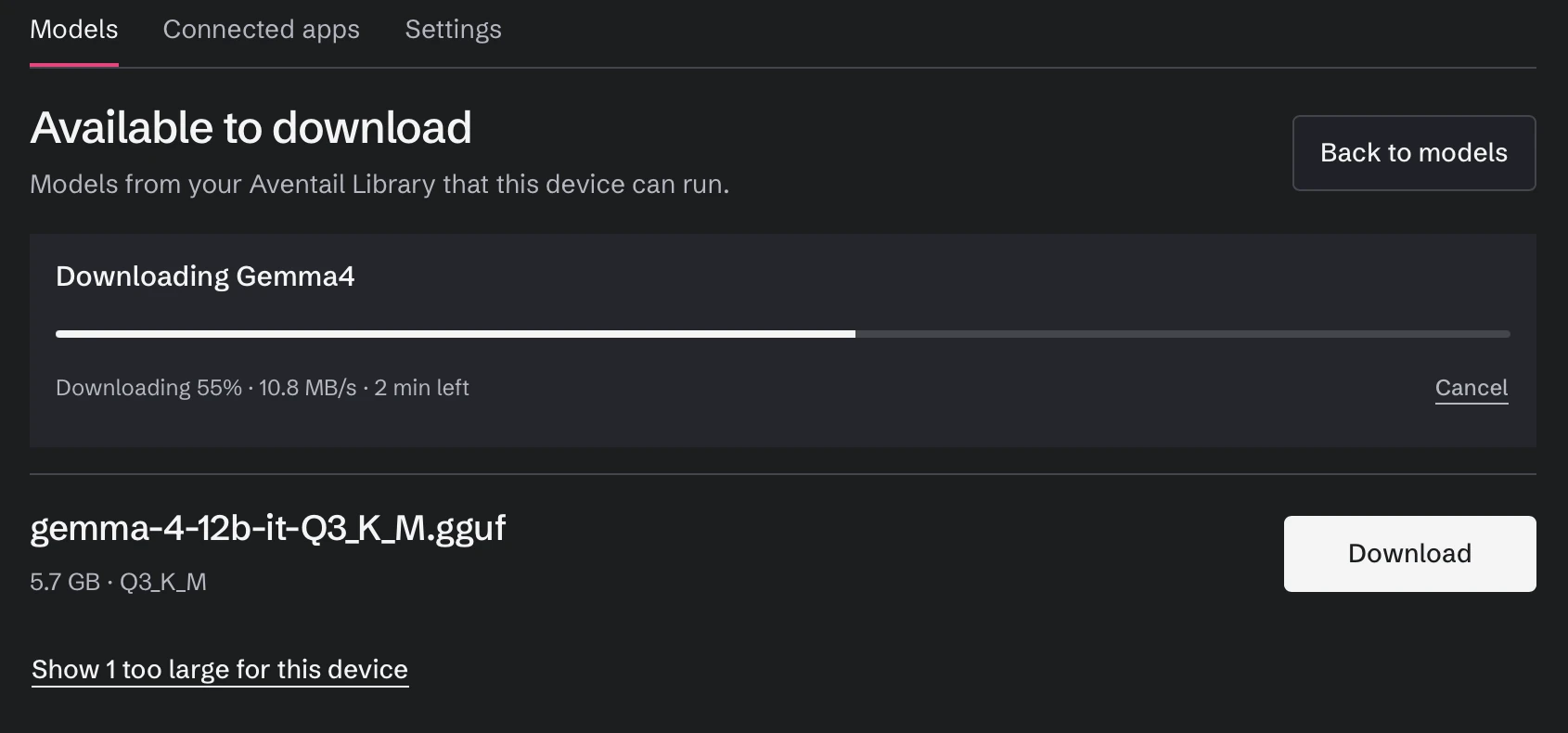
In Link, open Models and choose a model from the library. Download it and wait for the download to finish.
2. Start the model
Select the model and choose Start serving. When the status shows Ready to serve, connected apps can use it.

3. Set the context length
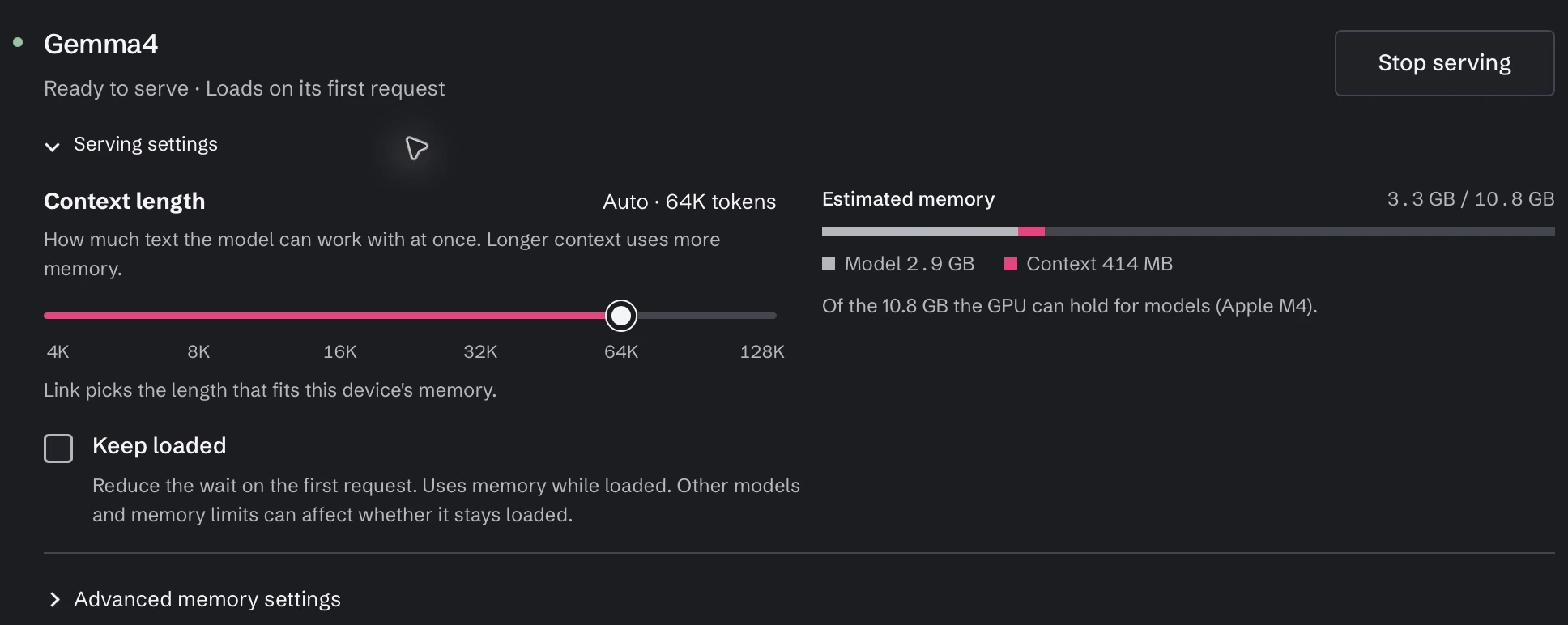
Open Serving settings for the model. Context length controls how much text the model can work with at once. Aventail™ Link’s Auto setting picks a length that fits this device’s memory; you can use the slider to adjust it for your workload.
Longer context uses more memory. Check Estimated memory as you adjust it, particularly if you plan to work with longer conversations, documents or code. The screenshot shows a 64K-token configuration on this device; the appropriate value depends on your model and available memory.
4. Connect Claude Desktop
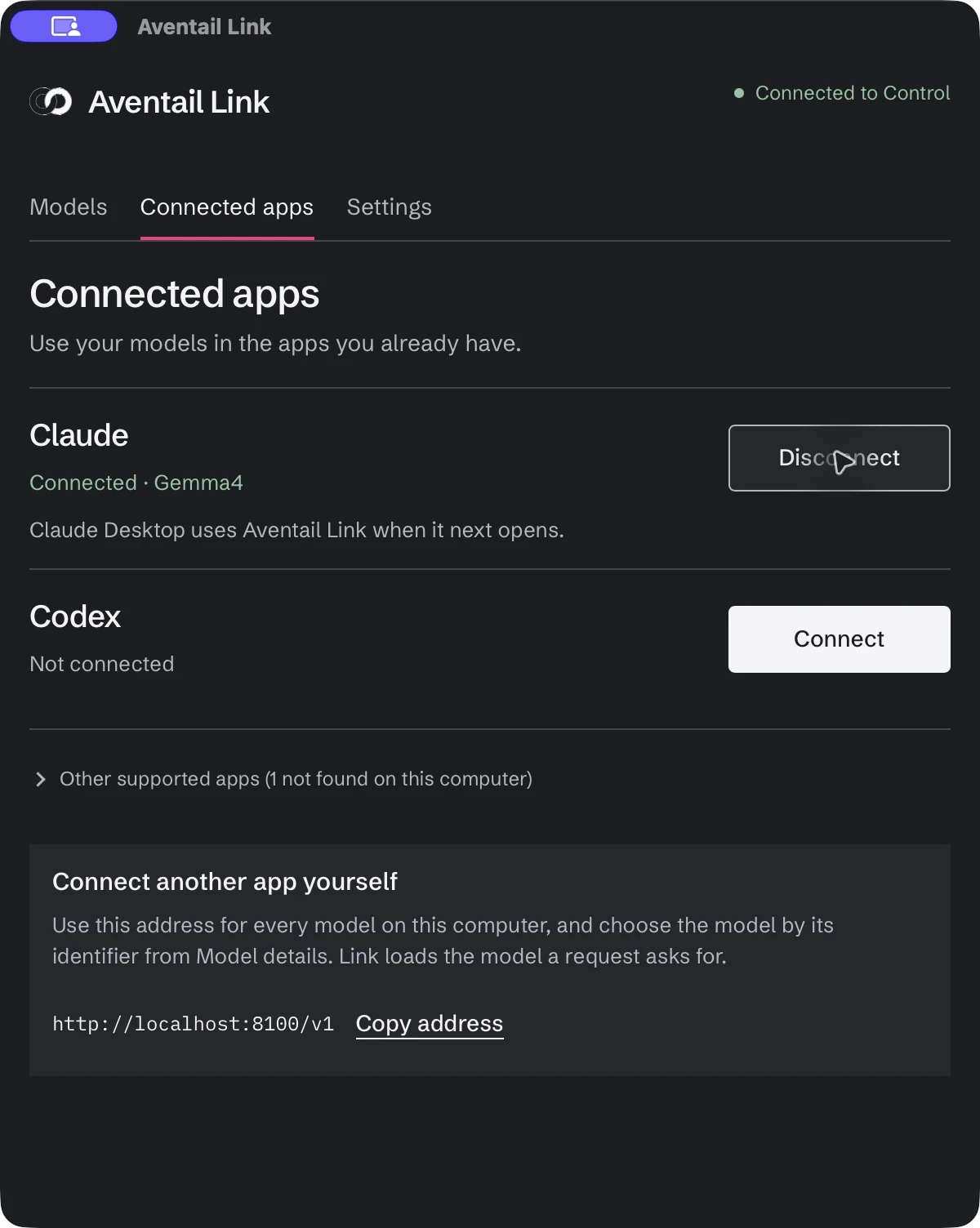
Close Claude Desktop first. In Aventail™ Link, open the Connected apps tab and choose Connect next to Claude. If Claude is running, Link asks you to quit it before the change takes effect. Wait for Connected, then reopen Claude Desktop.
5. Open Claude and try it
Reopen Claude Desktop. The connected model appears in the model picker. In our capture, Gemma4 via Aventail; your model name will differ. Ask a harmless question, such as a one-sentence welcome message.
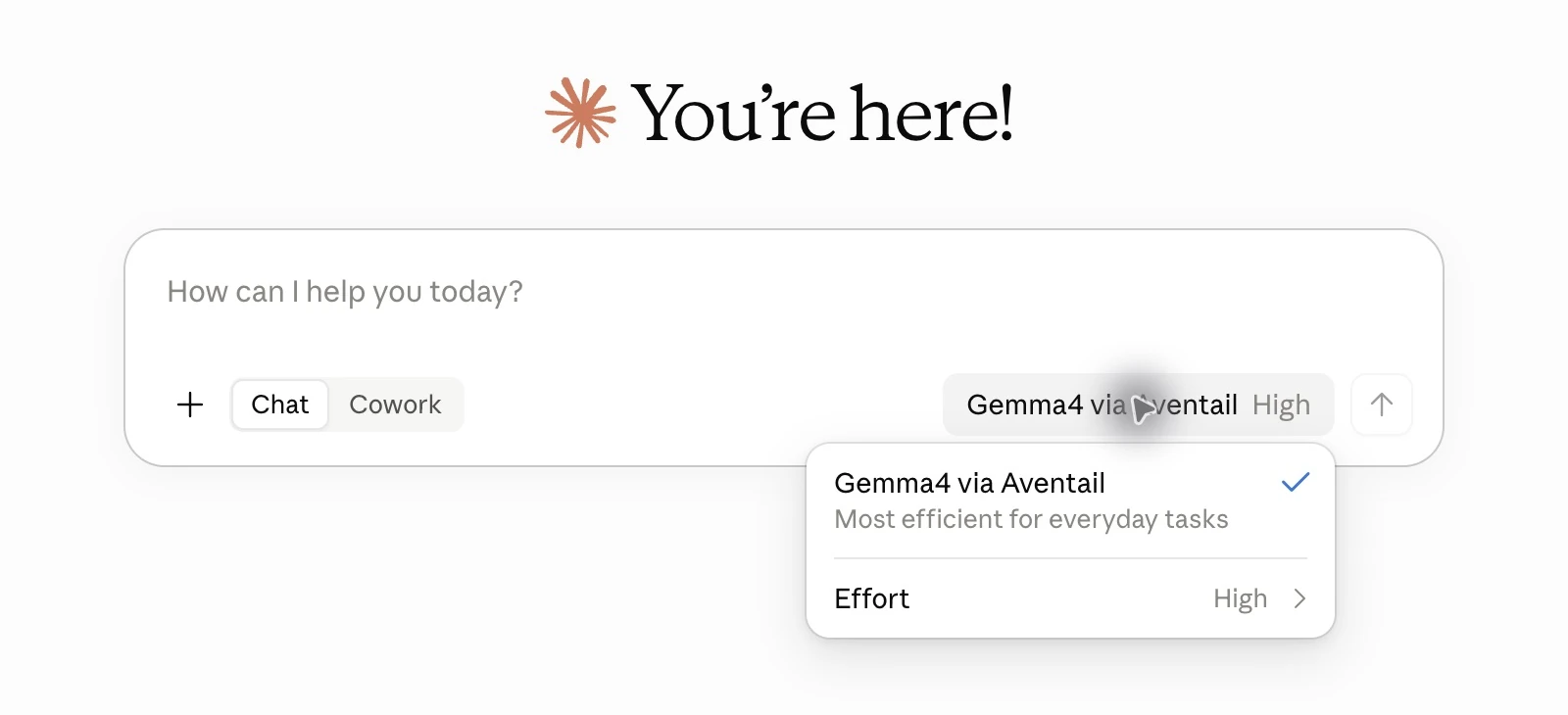
The model label alone does not prove where a request ran. To confirm the actual destination, check Recent usage in Control. The routing guide shows how.
Using Claude Code instead
Claude Code uses the same Connect path, with one difference: the model is chosen in Link, not in a Claude Code model picker.
Serve a supported model in Link. Choose a model that suits coding work. Claude Code relies on features such as tool use and long context.
Enable Claude Code under Connected Apps. On older Link versions, tick its checkbox. Setup is automatic: no configuration file to edit, no API endpoint to set and no key to paste.
Open a fresh Claude Code session for your check.
Do not select an Aventail™ provider or model inside Claude Code for this path. Change the model in Link instead. This Connect path does not require a Claude account; registering Link with Aventail™ is separate from any Anthropic account.
Aventail™ Connect is Aventail™'s integration, not an Anthropic product. Anthropic's gateway documentation notes that it does not support non-Claude models used through third-party gateways, and feature compatibility depends on the Claude Code version and the model.
What Connect governs
Connect brings the app's model requests into Aventail™ Link, where your routing rules choose an allowed destination: the local model, a peer machine running Link, or an approved hosted API on your organisation's own account. Routing to peers and hosted destinations is currently in beta, and requests sent to an approved hosted API may incur provider charges on that account. Choosing a local model is not proof of local-only processing if your policy permits a remote route or fallback. If no destination is permitted, the request fails.
Connect governs model requests only. The app's other network activity, file access, updates, telemetry and storage remain under the app's own settings and terms. For the routing detail, see the routing guide; for how Aventail™ handles security, see Security & trust.
Help
How do I change the model in Claude Desktop or Claude Code?
Choose a compatible model in Aventail™ Link and start serving it. In Claude Desktop, use the connected model shown in the model picker; quit and reopen the app if it has not updated. For Claude Code, change the served model in Aventail™ Link and open a fresh Claude Code session. You do not need to edit a provider configuration or paste an API key for the Connect setup.
Can I use Claude Code with confidential source code?
To keep supported model requests on your device, serve a suitable model in Aventail™ Link and permit only On device in your routing policy. Check that no peer, provider, fallback or inherited route allows remote execution. If local serving is unavailable, the request fails.
Before using confidential code, test with harmless code and verify the actual destination in Recent usage in Aventail Control. Follow the local-only routing and verification guide. Connect governs model requests only; review Claude Code’s file permissions, telemetry, storage and other network activity separately.
How do I disconnect Claude?
In Link, open Connected apps and choose Disconnect next to Claude.
Claude doesn't show the model?
Make sure the model still shows Ready to serve in Link, then quit and reopen Claude Desktop. If Link shows the app as not found on this computer, install it first, then return.
Does the Claude Code Connect path need an Anthropic account?
No. The Claude Code Connect path needs an Aventail™ account and a registered Link device; it does not require an Anthropic account. This answer covers Claude Code only.
Get started
Download Aventail™ Link, start a model and connect Claude. Using OpenCode too? See the OpenCode setup guide. Rolling out to a team? Read deploying a private AI workspace across laptops and servers, or see Aventail™ Connect.
Choose a version for your desktop computer.
Planning a team rollout? Review the Claude Code security checklist for enterprises before introducing confidential source code.
For a fully isolated deployment, read our guide to air-gapped AI: what must stay inside the boundary, how to keep management local and how to test the complete application.